Google Play Store
- 4.9
- Rating
- 10.00B
- Installs
- Free
- Price

 Analysis by App-foxy
When I open an Android phone and need an app, game, film, or update, Google Play Store is usually my first stop. It is not exciting in the way a new game can be, but it is one of those tools that quietly determines how easy the rest of the phone feels. Google LLC develops it, and the app is free for users, with an Everyone age rating. After using it as the main doorway to Android software, I find it most useful when I treat it as a place to search, check, install, maintain, and occasionally remove apps rather than simply as a download button.
The store has been available since October 18, 2010, and its scale is difficult to ignore: it has passed ten billion installs, with an average score of 4.9 from around 130 million ratings and roughly 28 million written reviews. Those figures explain why it feels familiar on so many devices, but they do not automatically make every listing good or every recommendation suitable. My experience is that the real value comes from knowing how to read the store carefully and how to use its update and account tools without rushing through them.
From opening the store to making a useful first choice
What to expect when you first open it
The first screen can feel busy because Google Play Store brings several kinds of content together. Apps and games sit alongside films and other digital items, so a new user may not immediately know where to begin. I recommend starting with the search field when you already know what you want. Searching for a specific name is less frustrating than scrolling through broad recommendations, especially when several apps use similar words or icons.
In-Depth Coverage of Google Play Store
If you are exploring rather than searching for a particular title, take a moment to separate your goal. Are you trying to solve a practical problem, find entertainment, or update something already installed? That small distinction matters. A search for a note-taking tool should lead you to compare descriptions and permissions, while browsing games is more about screenshots, age suitability, and whether the style matches your patience and available time.
Google Play Store is best understood as an Android app marketplace and maintenance tool. It helps users discover software, but it also provides the normal route for installing updates and managing the apps already connected to an Android device. I would not call it a complete guarantee of quality. It gives you information and access; the final decision still belongs to you.
Setting up without making the process harder
For a first-time user, the sensible approach is to open the store on the Android phone and sign in with the Google account you intend to use on that device. I prefer using one consistent account because it keeps my installed-app history and update activity easier to understand. If a phone is shared, or if several people use different accounts, pause before installing anything so you know which account is active.
Once you are inside, do not install several things just to test the store. Choose one small, familiar app first. Search for it by name, open its listing, and read the short description before pressing the install control. This gives you a low-pressure way to learn the basic path: search, inspect, install, open, and later return for updates or removal.
The listing itself deserves more attention than many people give it. I look at the developer name, the screenshots, the age rating, the written reviews, and the date or wording around recent changes when that information is shown. A familiar-looking icon is not enough. Similar names can make it easy to select the wrong result, particularly for popular tools with unofficial imitations.
Because Google Play Store is rated for Everyone, it is approachable for general household use, but that does not mean every item inside it is appropriate for every person. The store contains content aimed at different ages and interests. For a child’s device, I would check each individual listing and use the device’s available family controls rather than relying only on the store’s general age classification.
Your first successful action: install one app deliberately
My recommended first success is simple: find one app you genuinely need, verify that the listing matches it, install it, and open it immediately. For example, imagine a relative has just bought an Android phone and wants a messaging app. I would search the exact name, check the developer, glance through the screenshots, and then install it while connected to a reliable network. After opening it, I would return to Google Play Store and confirm that the same listing now offers the expected management options.
This workflow teaches more than tapping a button. It shows how the store connects discovery with maintenance. If the app later needs an update, you can return to its listing or use the store’s update area instead of searching the web for an installation file. That is one of the strongest reasons I recommend using the official store as the default route on Android.
There is also a useful habit hidden in this first installation: read the reviews for patterns, not isolated complaints. One angry comment may describe a phone-specific problem, while repeated remarks about intrusive behavior, broken sign-in, or a recent change deserve more weight. I do not treat the average rating as a substitute for reading. A high score tells me that many people are satisfied overall, but it does not tell me whether the app suits my particular phone or routine.
After installation, give the app a practical test rather than judging it from the icon. Try the action that made you download it. If it is a scanner, scan something; if it is a calendar, create a real reminder; if it is a game, check whether the controls feel comfortable. This prevents a crowded phone full of apps that were installed out of curiosity and forgotten.
You May Also Like

 AliExpress - Shopping App
AliExpress Makes Global Shopping Feel Personal, but Shoppers Bear the Risk
AliExpress turns a global marketplace into a pocket-sized discovery engine. Its reach is useful, its shopping loop compelling, and its trade-offs easy to miss.

 Lords Mobile: Kingdom Wars
Lords Mobile Is a Kingdom-Building Routine, Not a Quick Match
A case-by-case verdict on the building, battles, device demands, and social commitments that make Lords Mobile rewarding for some players and exhausting for others.

 PDF Scanner app - TapScanner
TapScanner Makes Paperwork Easier to Capture, Check, and Share
TapScanner makes scanning with a phone feel less like a rescue operation and more like a dependable step in getting work done. Its capture tools are useful, though not flawless.

 Block Blast!
Block Blast! Shows How Much a Puzzle Game Can Leave Out
A quiet grid game shows why puzzle players increasingly value instant clarity, repeatable skill and low-pressure play—and where the genre still needs to catch up.

 Family Space
Family Space Review: A Shared Routine That Makes Family Life Easier
A parenting app earns its place not by adding more noise, but by making everyday coordination easier. Family Space gets that balance mostly right.

 1Weather Forecasts & Radar
1Weather Forecasts & Radar Makes the Daily Check Worthwhile
A good forecast does more than predict rain. This week's pick turns changing conditions into a clear, practical reason to check before you step outside.
More From Our News Desk
View All News


Where new users commonly get confused
The most common confusion is assuming that every item visible in the store is an ordinary free app. Google Play Store also presents games, films, and other digital content, and some listings may involve payment or additional in-app choices. I always look at the purchase information and the listing details before confirming anything. “Free” describes the store app itself, not every product offered through it.
Another source of friction is the difference between an app update and an Android system update. Google Play Store can handle updates for apps distributed through it, but it is not the same screen as the phone manufacturer’s system-update settings. If the phone says the operating system needs attention, I follow the device settings rather than assuming the store will handle every kind of update.
Storage is another practical issue. A download can fail even when the store appears to be working normally if the phone has very little free space or the connection is unstable. When that happens, I first check available storage and network reliability instead of repeatedly pressing install. Removing unused apps, clearing space for the download, and trying again later is usually more sensible than blaming the listing.
Updates can also feel intrusive when they arrive at an inconvenient time. My preference is to review the update area periodically, especially before travel or before relying on an app for work. Updating everything immediately is not always necessary, but ignoring updates indefinitely can leave important apps behind. The useful middle ground is to keep essential apps current while avoiding a large, unplanned download session when the phone is busy.
Search results can cause a different kind of mistake. A title may appear several times with different developers, icons, or descriptions. I compare the developer name and visual identity carefully, then read enough of the listing to make sure it matches the app I intended to find. This is a small step, but it is one of the most valuable habits for a first-time user.
How it compares with downloading elsewhere
Compared with searching the web for installation files, Google Play Store is more convenient for ordinary Android users because discovery, installation, and updates happen in one familiar place. I do not have to hunt through unrelated pages or remember where an app came from. That simplicity is especially helpful for family members who want a predictable process rather than a technical project.
Compared with a manufacturer’s app store, Google’s marketplace often feels more universal across Android devices. A phone maker’s store can still be useful for device-specific tools, but I generally start with Google Play Store for everyday apps and games. The trade-off is that a broad marketplace can feel less curated. Its size gives me more choice, yet it also means I need to inspect listings instead of assuming that visibility equals suitability.
Compared with manually installing software from outside the store, the official route is less flexible for people who deliberately need a particular version or a product unavailable in their region. That is a legitimate reason some experienced Android users choose another method. However, for a first-time user, outside installation introduces decisions about file sources, compatibility, and future updates. I would not recommend that path merely to avoid learning the store’s basic screens.
Google Play Store is also different from a subscription-focused entertainment service. It is not only a catalog for one kind of content; it is a general Android hub where practical tools, games, films, and updates meet. That breadth is useful, but it can make the interface feel less focused than a specialist store. If you already know you want only films or only games, a dedicated service may offer a calmer browsing experience.
Three habits that make the store noticeably better
First, I use the store as a cleanup tool, not just an installation tool. Every few weeks, I look at the apps on the phone and ask whether I still use them. An app that has not been opened since a one-time task is often a better candidate for removal than for another update. This reduces clutter and makes future searches easier.
Second, I open the full listing before installing an app that will handle personal information. The screenshots may show the attractive part, while the written description and reviews reveal whether the workflow fits me. I pay particular attention to complaints that relate to sign-in, offline use, advertisements, or compatibility. These details can matter more than a polished icon.
Third, I prepare before a critical moment. If I need a travel, banking, translation, or communication app, I install and test it at home rather than waiting until I am already on the road. I also check that it opens correctly and that I know where its important function is. The store can deliver the app, but it cannot replace a real test of the app’s usefulness.
A fourth habit is helpful for shared devices: I confirm the active account before downloading or managing anything. This avoids the awkward situation where one person expects an app to appear in their history while another account actually handled the installation. It is a small account-management detail, but it prevents confusion later when updates or reinstallations are needed.
Who should use it, and who may prefer something else?
I recommend Google Play Store to almost anyone using Android who wants the least complicated way to find and maintain apps. It is particularly good for first-time smartphone owners, families helping relatives remotely, and people who want one recognizable place for updates. Its free access and Everyone rating also make the basic store easy to approach.
I would be more cautious about recommending it as the only source for users who need highly specialized software, strict organizational control, or a marketplace limited to one narrow type of content. Those users may prefer a managed enterprise channel, a manufacturer’s store, or a specialist service. Someone who dislikes browsing and already knows exactly which alternative source they trust may also find Google’s broad catalog more distracting than useful.
Privacy-conscious users should make their own careful decisions about every app they install. The store helps with discovery and distribution, but it does not turn an unsuitable app into a suitable one. I read the listing, check the developer, consider whether the requested function makes sense, and avoid installing tools that promise far more than their simple purpose requires.
The next step after your first installation
Once the first app works, the next useful step is learning the update routine. Return to Google Play Store occasionally and look for available updates rather than waiting until an app breaks. For important apps, I prefer updating before I need them. For less important apps, I may wait until I have a stable connection and enough time to check whether the new version still behaves as expected.
It is also worth learning how to return to an app’s listing. The listing is where I can compare the current description with the app I installed, read newer user experiences, and find the controls for managing it. This is more reliable than relying on a home-screen icon alone, because the icon tells me almost nothing about the app’s current state.
My final view is that Google Play Store succeeds through familiarity and reach rather than personality. It is a practical Tools app from Google LLC that puts Android software and updates within easy reach, and its enormous adoption makes it a natural starting point. Still, the best experience comes from slowing down at the moments that matter: verify the developer, understand whether the item is free or paid, read patterns in reviews, test the first installation, and keep the phone tidy afterward.
If you want a straightforward path from a new Android phone to a working app, I would recommend it without hesitation. Use it as a careful guide, not as an automatic stamp of approval. That mindset turns Google Play Store from a crowded catalog into a dependable everyday tool, while leaving room to choose a different source when your needs are more specialized.
FAQs for Google Play Store
01What is the Google Play Store and its primary function?
The Google Play Store is the official app distribution platform for Android devices. It allows users to browse, download, and update apps and games, as well as purchase digital content like books, music, and movies. It ensures that apps meet Google's quality standards, providing a secure and reliable source for Android software.
02Is it safe to download apps from the Google Play Store?
Yes, the Google Play Store is generally safe for downloading apps. Google employs robust security measures, including Google Play Protect, which scans apps for malware and other threats. However, users should still read app reviews and check permissions before downloading to ensure optimal safety.
03How can I manage app updates on the Google Play Store?
To manage app updates, open the Google Play Store, tap on your profile icon, and go to 'Manage apps & device.' Here, you can see which apps need updating, manually update them, or enable automatic updates to ensure your apps are always up-to-date with the latest features and security patches.
04What should I do if an app purchased on the Google Play Store isn’t working?
If a purchased app isn't working, first try restarting your device and checking for updates. If the problem persists, contact the app developer for support. You can also request a refund within 48 hours of purchase through the Play Store's refund policy if the app remains faulty.
05How can I find apps and games that suit my preferences on the Google Play Store?
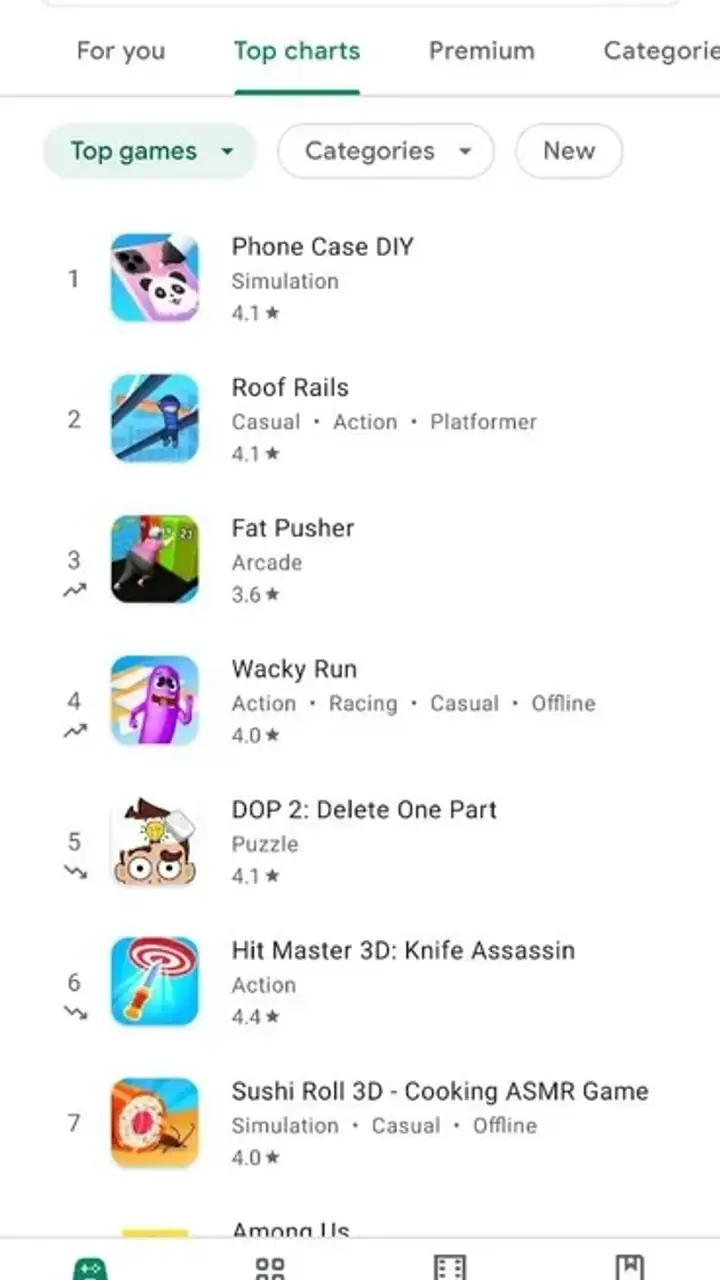
To find apps and games tailored to your preferences, use the search bar and explore categories such as Top Charts and Editor’s Choice. The Play Store also offers personalized recommendations based on your previous downloads and interests, helping you discover new and relevant content.
Pros
- Wide variety of apps available.
- User-friendly interface design.
- Regular updates and security patches.
- Supports in-app purchases seamlessly.
- Easy app discovery with personalized recommendations.
Cons
- Contains some low-quality apps.
- Frequent ads in free apps.
- Large app sizes can consume storage.
- Occasional download errors.
- Some apps require newer OS versions.

Google Play Store
Gallery